VM Snapshots
RESVRL's VM snapshot feature lets you save a point-in-time of a virtual machine at any state, so you can return to that state later. This guide explains how to view snapshots, create snapshots manually, monitor progress, and perform revert, delete, and auto-snapshot strategies.
VM Snapshots
RESVRL's VM snapshot feature lets you save a point-in-time of a virtual machine at any state, so you can return to that state later. This guide explains how to view snapshots, create snapshots manually, monitor progress, and perform revert, delete, and auto-snapshot strategies.
Navigate to Snapshots
From the VM details page, switch to the Snapshot tab to see the list of snapshots for this VM.
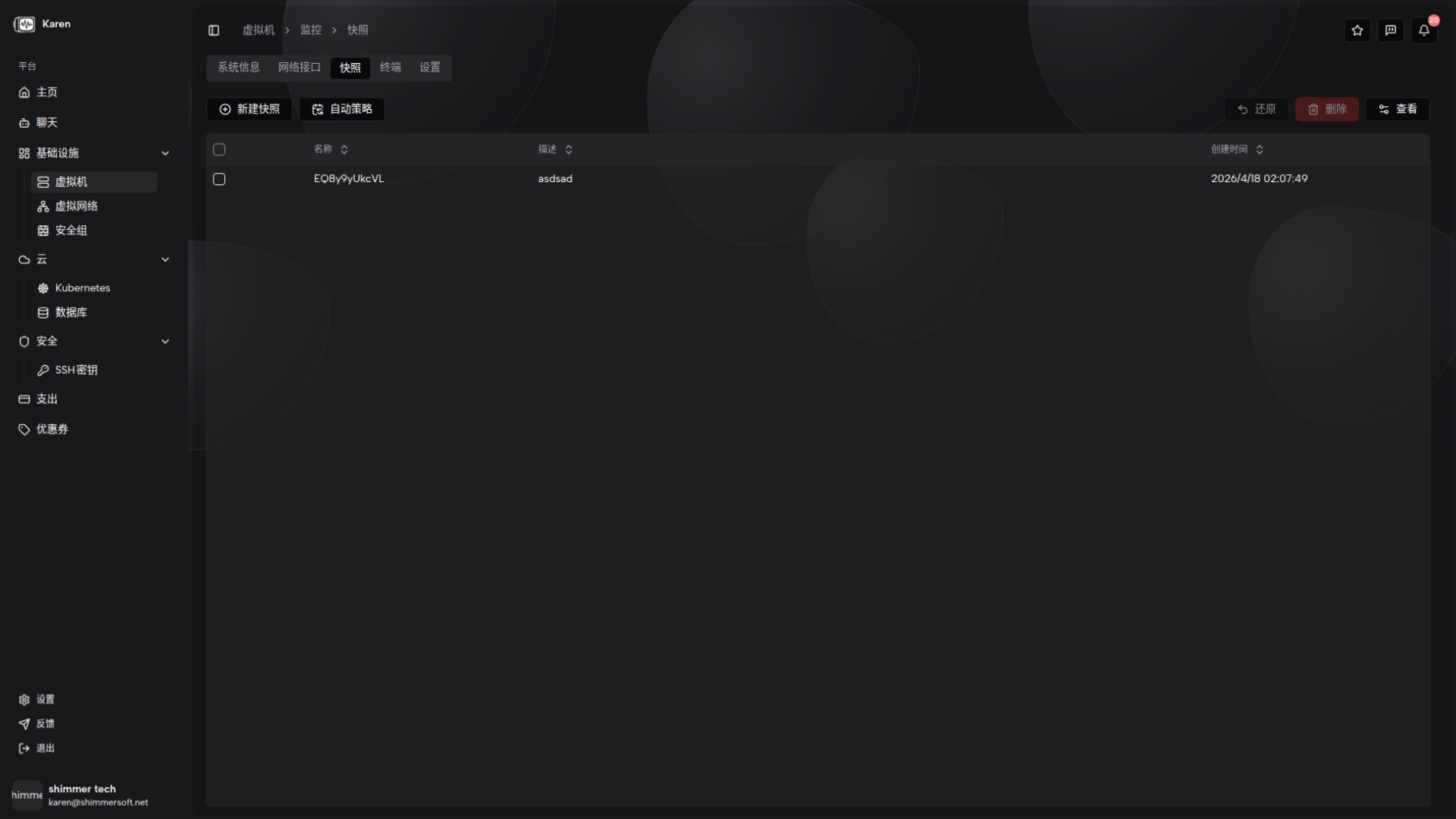
Snapshot List
The list shows each snapshot's name, description, and creation time. The name is typically system-generated to ensure uniqueness, while the description provides context for what the snapshot captures. Creation time indicates when the snapshot was created.
Manual Snapshot Creation
On the Snapshot page, click Create Snapshot, enter an optional description, and save. The system will create a snapshot of the VM in its current state and returns the system-generated snapshot name, which appears in the list.
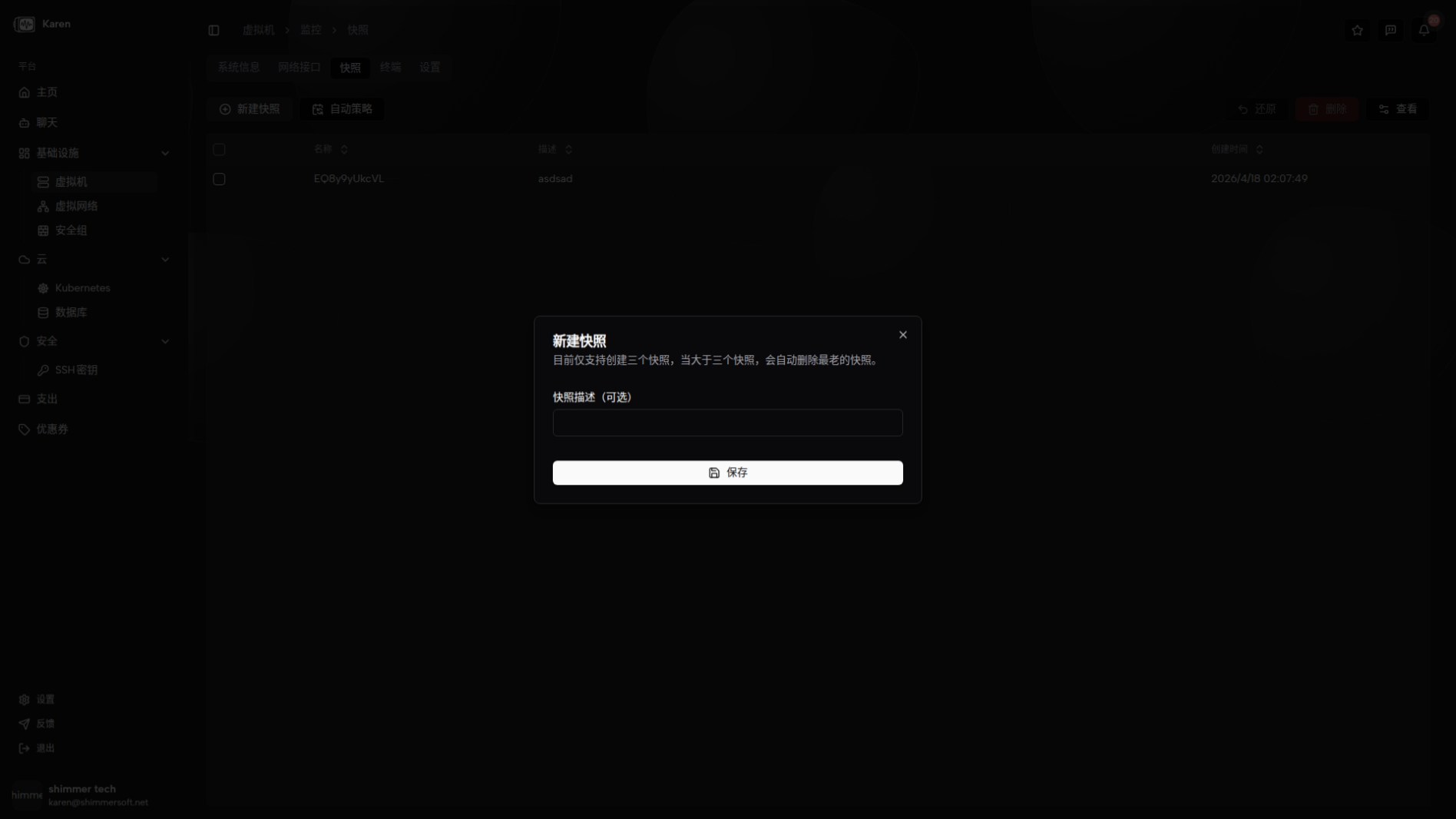
Snapshot Tasks
When a snapshot is being created, a corresponding task is created in the background. You can monitor the task status on the snapshot page, e.g., pending, in progress, or completed.
Snapshot Revert / Restore
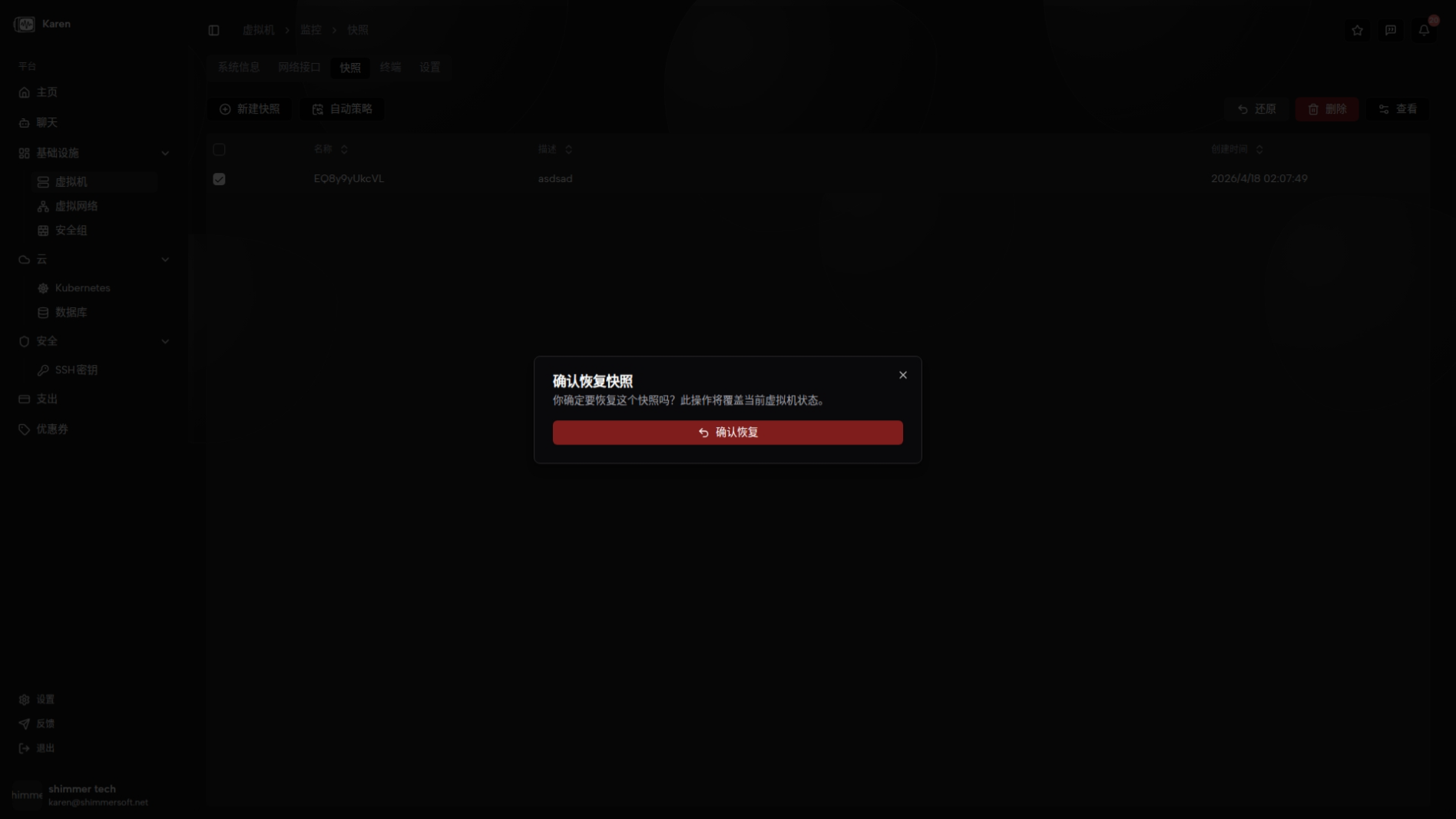
Select a snapshot and perform a revert. Reverting restores the VM to the selected snapshot state. After a revert, changes made after the snapshot may no longer be present, so confirm before proceeding.
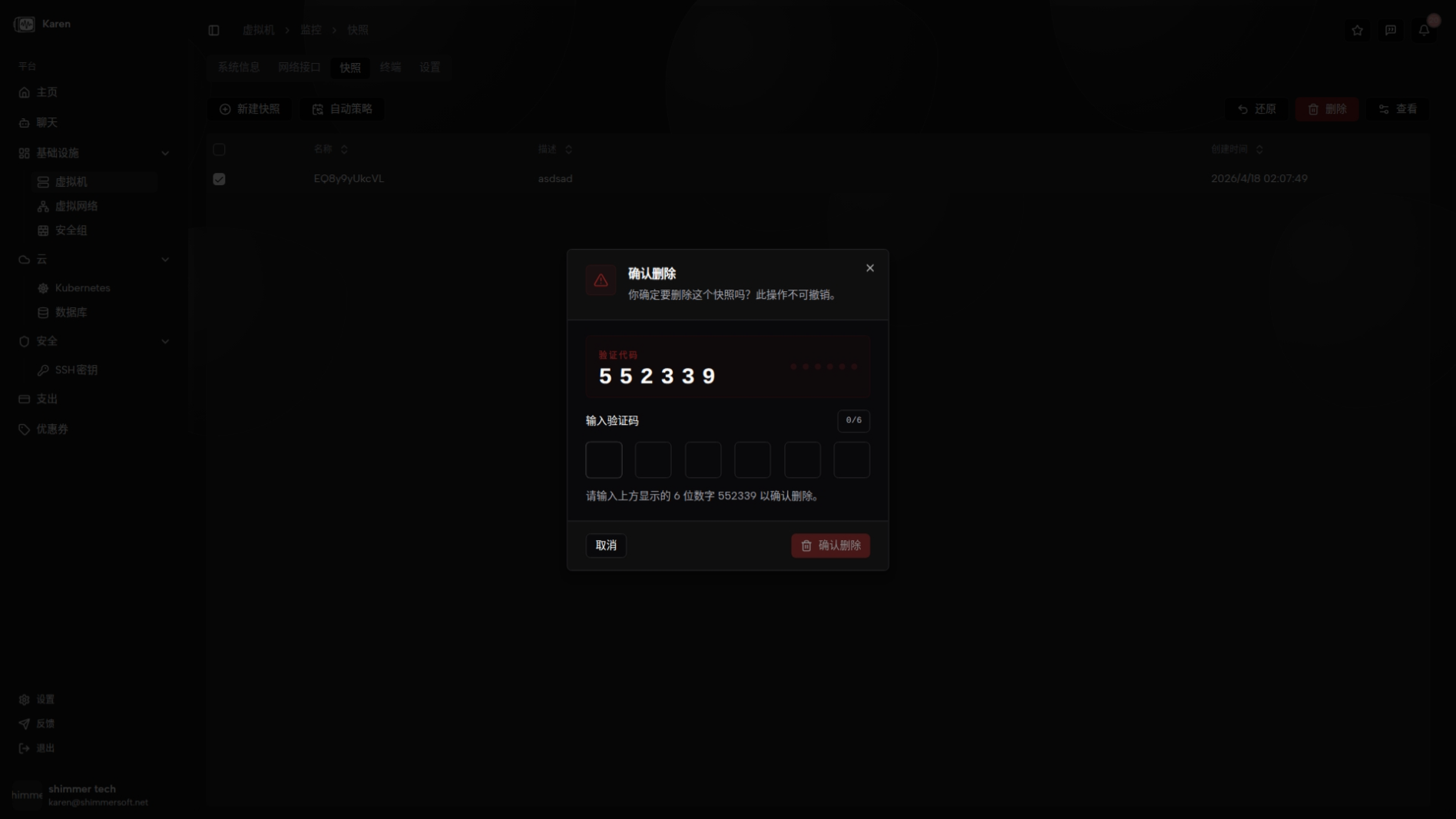
Snapshot Deletion
To remove old snapshots, select a snapshot and click Delete. A confirmation dialog appears; confirming will permanently delete the snapshot.
Auto Snapshot Strategy
Auto Snapshot Strategy enables scheduled automatic snapshot creation to preserve VM states at defined times. The feature supports three scheduling modes: Daily, Weekly, and Monthly. You can pick the execution time and, for Weekly, the day of week. You can enable/disable the strategy and create or update an existing task. The chosen schedule is converted to a cron-like expression used by the backend.
Configuration Highlights
- Schedule type: Daily, Weekly, or Monthly
- Execution time: Hour of day (0-23)
- Day of week: Required only for Weekly schedule (Sun-Sat)
- Enable / Disable: Turn the auto-snapshot task on or off
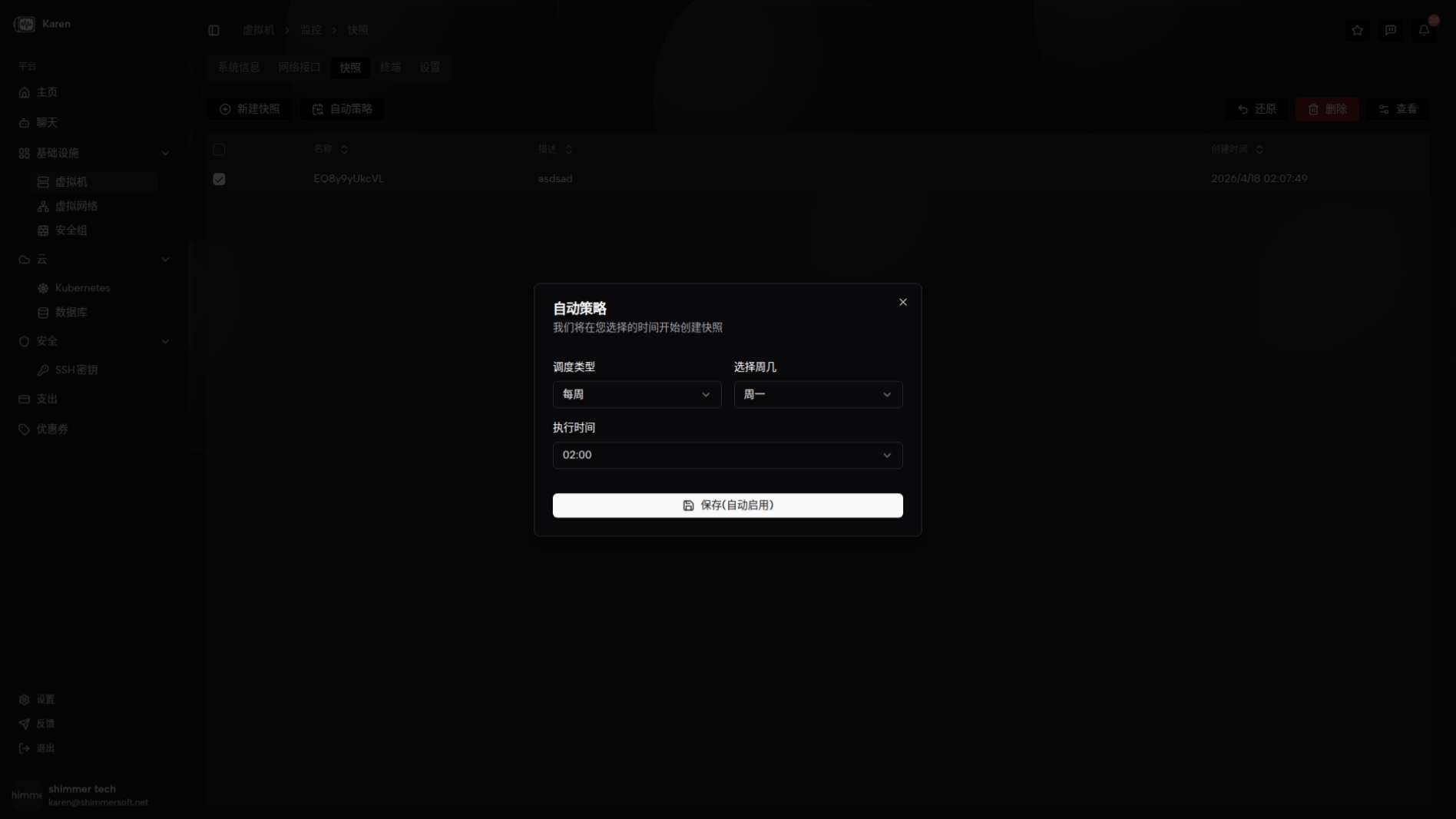
Open the Snapshot page and click the Auto Snapshot Strategy button to configure. Saving updates an existing task or creates a new one as appropriate.
Related guides
This document was updated on 2026-04-25 09:00