SSH Key Management
The SSH Keys page lets you manage reusable login keys in one place so you can select them during VM creation instead of pasting them every time. This guide explains the web workflow for generating a new key pair, importing an existing public key, copying public keys, and deleting unused entries.
SSH Key Management
The SSH Keys page lets you manage reusable login keys in one place so you can select them during VM creation instead of pasting them every time. This guide explains the web workflow for generating a new key pair, importing an existing public key, copying public keys, and deleting unused entries.
Where to find it
- Sign in to the member console.
- Open the Security area.
- Go to the SSH Keys page.
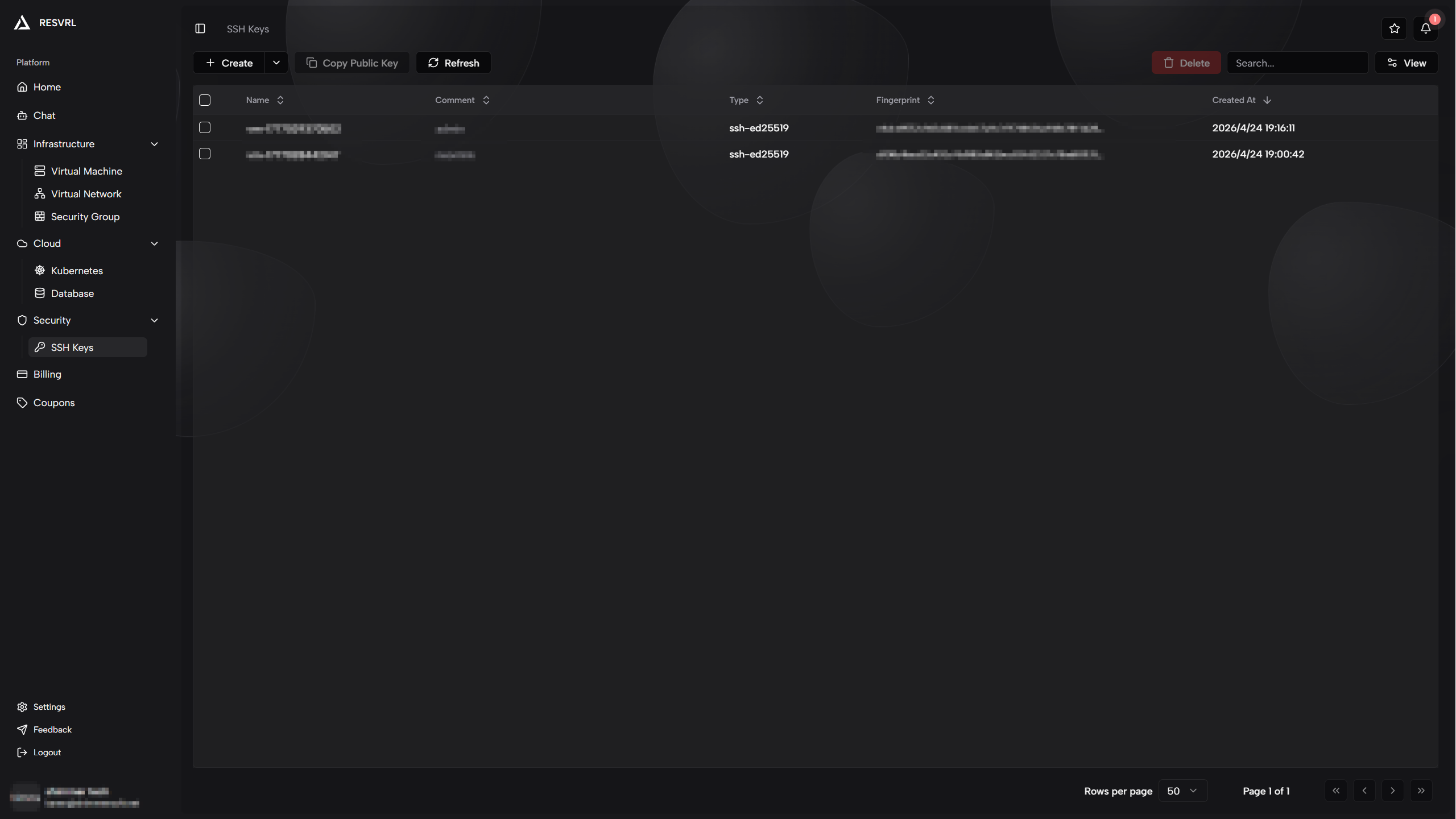
Generate a new SSH key pair
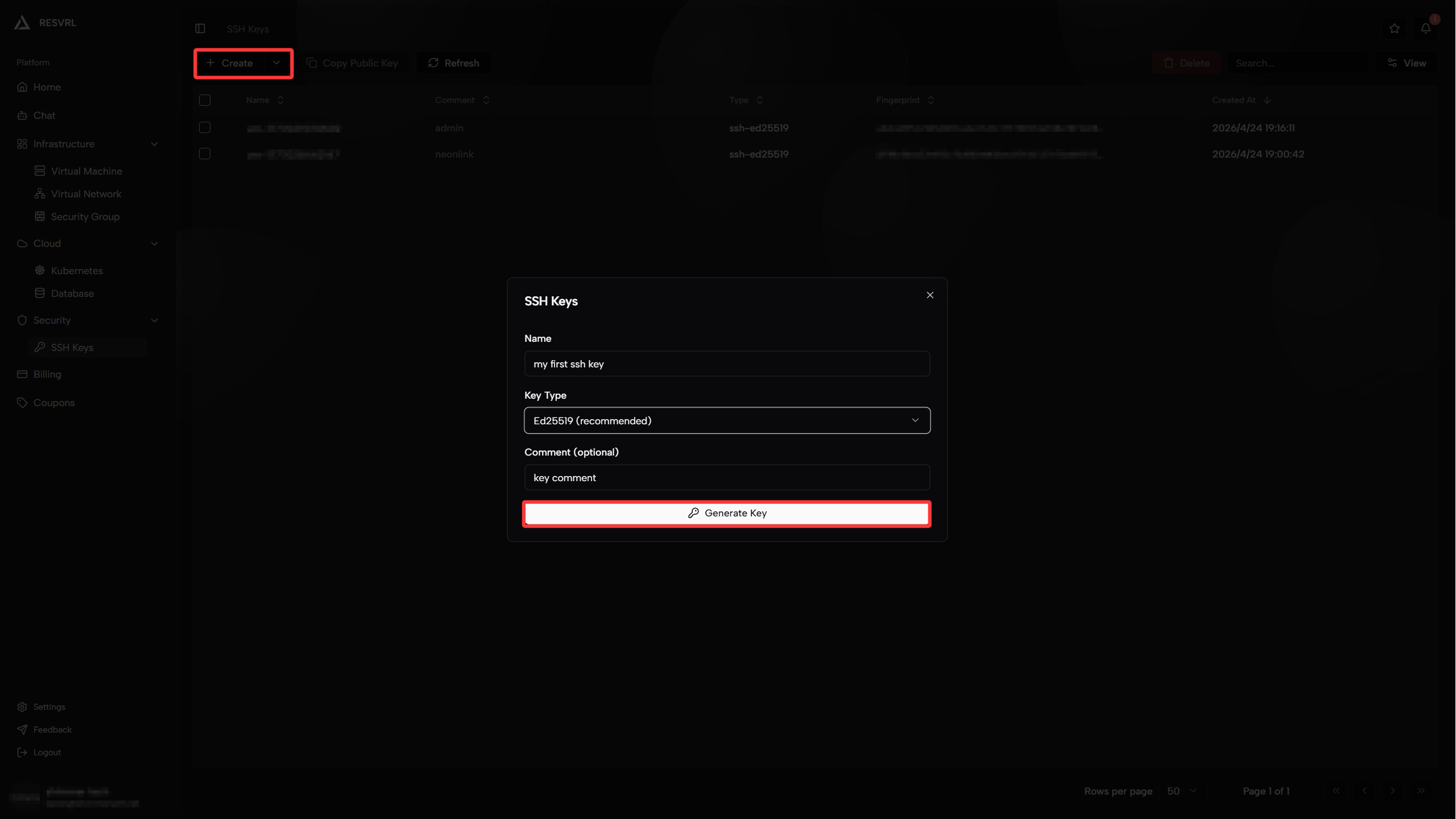
- Click Create.
- Choose Generate.
- Enter a name.
- Select the key algorithm, usually ED25519 or RSA.
- Enter an optional comment if needed.
- Click Generate.
- The platform stores the public key automatically.
- A follow-up dialog lets you copy or download the private key.
What you must do immediately after generation
- Download or copy the private key right away.
- Store it in a secure terminal or password manager.
- Confirm it is saved before closing the dialog.
The platform usually stores only the public key, not the private key for later retrieval.
Import an existing public key
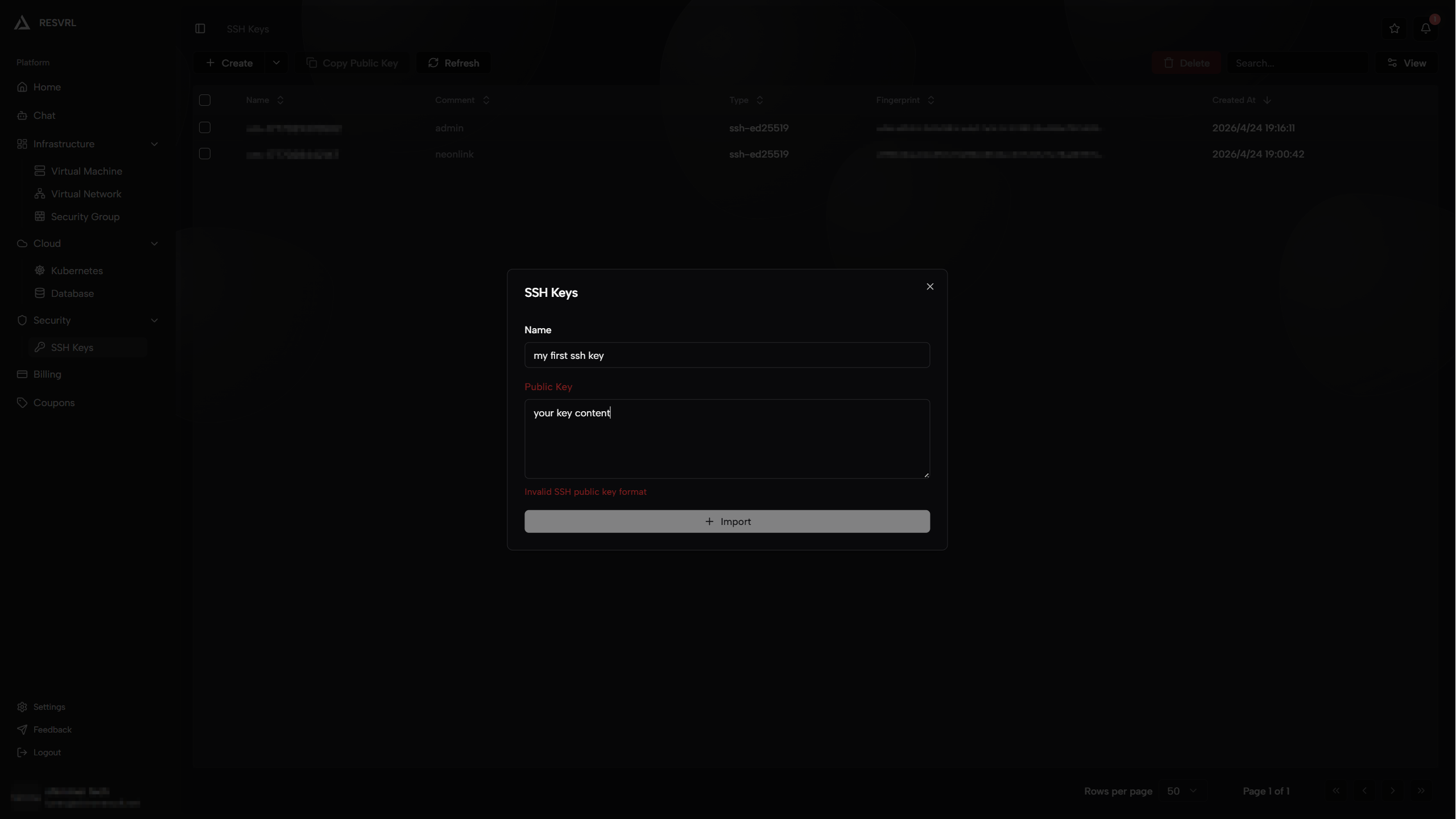
- Click Create.
- Choose Import.
- Enter a name.
- Paste the SSH public key content.
- Submit the form.
If the key format is invalid, the page usually blocks submission before the request is sent.
Copy public keys
- Select one or more keys in the table.
- Click Copy.
- The selected public keys are copied to your clipboard.
This is useful when you want to reuse the same key during VM creation or on another system.
Delete SSH keys
- Select one or more rows in the table.
- Click Delete.
- Confirm the action in the dialog.
After deletion, the key can no longer be selected for new resources. Existing workloads may still keep the authorized key depending on how access was configured inside the guest system.
Best practices
- Prefer SSH keys over long-lived static passwords for administrator access.
- Use clear names that reflect environment, team, or purpose.
- Clean up unused keys regularly.
- Keep a local backup and rotation process for important keys.
Common questions
Does the platform store my private key?
Usually no. The generation workflow expects you to copy or download the private key immediately, and you often cannot view it again after closing the dialog.
Why did import fail?
The most common reasons are invalid public-key format, an empty name, a duplicate name, or a public key that already exists in the account.
Why is the Copy button disabled?
In most cases, no SSH key is currently selected.
Related guide
This document was updated on 2026-04-25 09:00