VM List
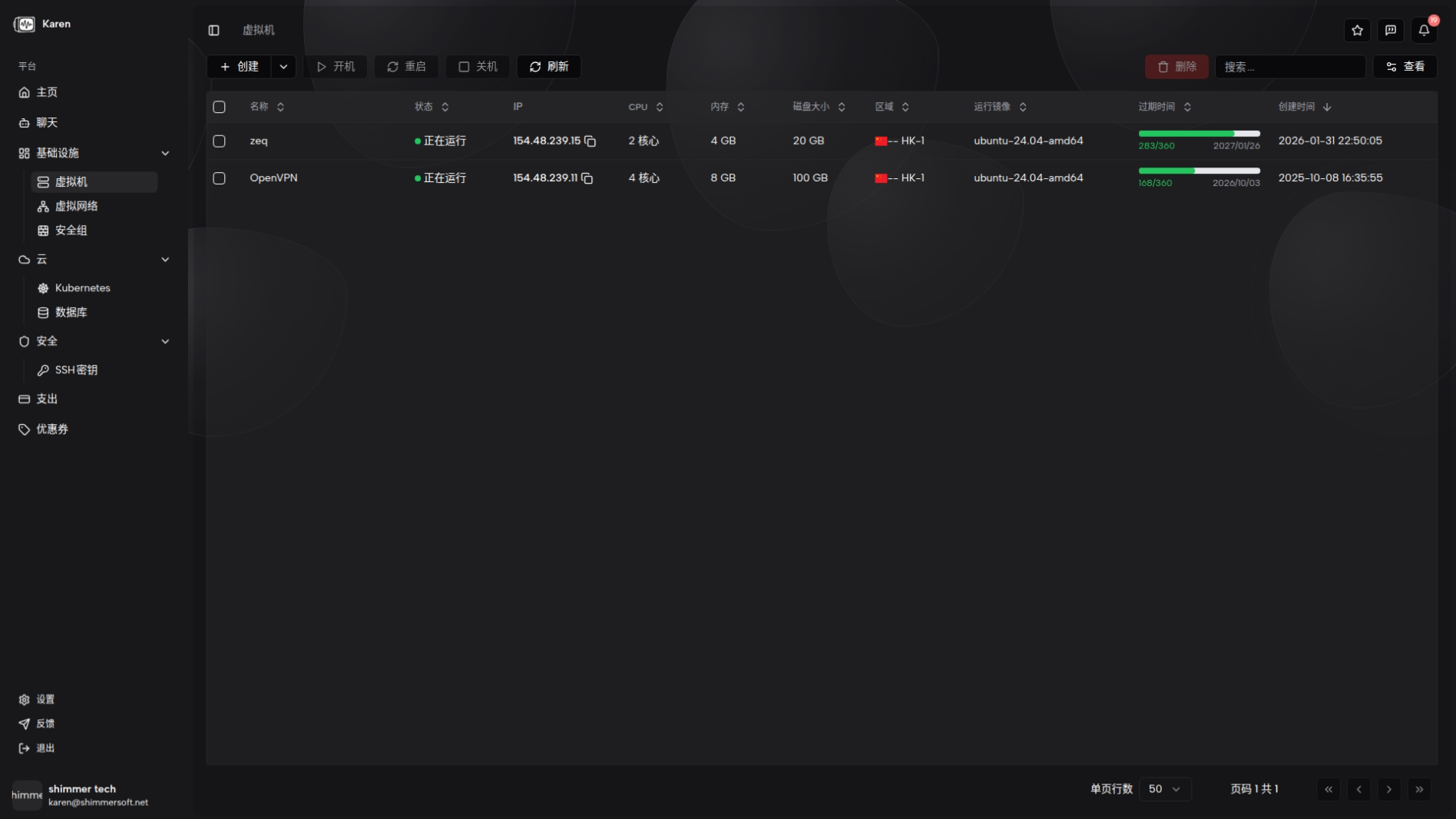
The VM list page is the main entry point for managing all your instances. Navigate to Virtual Machines from the left sidebar to see every instance under your account along with its status, configuration, and expiry information.
VM List
The VM list page is the main entry point for managing all your instances. Navigate to Virtual Machines from the left sidebar to see every instance under your account along with its status, configuration, and expiry information.
Toolbar actions
The following buttons appear above the table:
- Create — Opens the VM creation flow. Choose from Custom, Plan, or Pay-as-you-go.
- Bulk Start — Select multiple stopped instances and start them at once.
- Bulk Stop — Select multiple running instances and shut them down at once.
- Bulk Reboot — Select multiple instances and reboot them at once.
- Bulk Delete — Select multiple instances and delete them after confirmation.
- Refresh — Reload the list data.
Search and pagination
A search box at the top lets you filter by name, IP, and other fields. Pagination controls at the bottom let you change page size and navigate between pages.
Open instance detail
Click an instance name in the list to open its detail page. The detail page is the main operating console for the VM, with five tabs: System Info, Interface, Snapshot, Terminal, and Settings.
This document was updated on 2026-04-25 09:00