Chat Guide
AI Chat is useful when you want quick help inside the console, such as summarizing operations, drafting troubleshooting steps, or clarifying product capabilities. This guide explains the actual web flow for starting a conversation, managing history, and stopping a response while it is streaming.
Chat Guide
AI Chat is useful when you want quick help inside the console, such as summarizing operations, drafting troubleshooting steps, or clarifying product capabilities. This guide explains the actual web flow for starting a conversation, managing history, and stopping a response while it is streaming.
Where to find it
- Sign in to the member console.
- Open Chat from the left navigation.
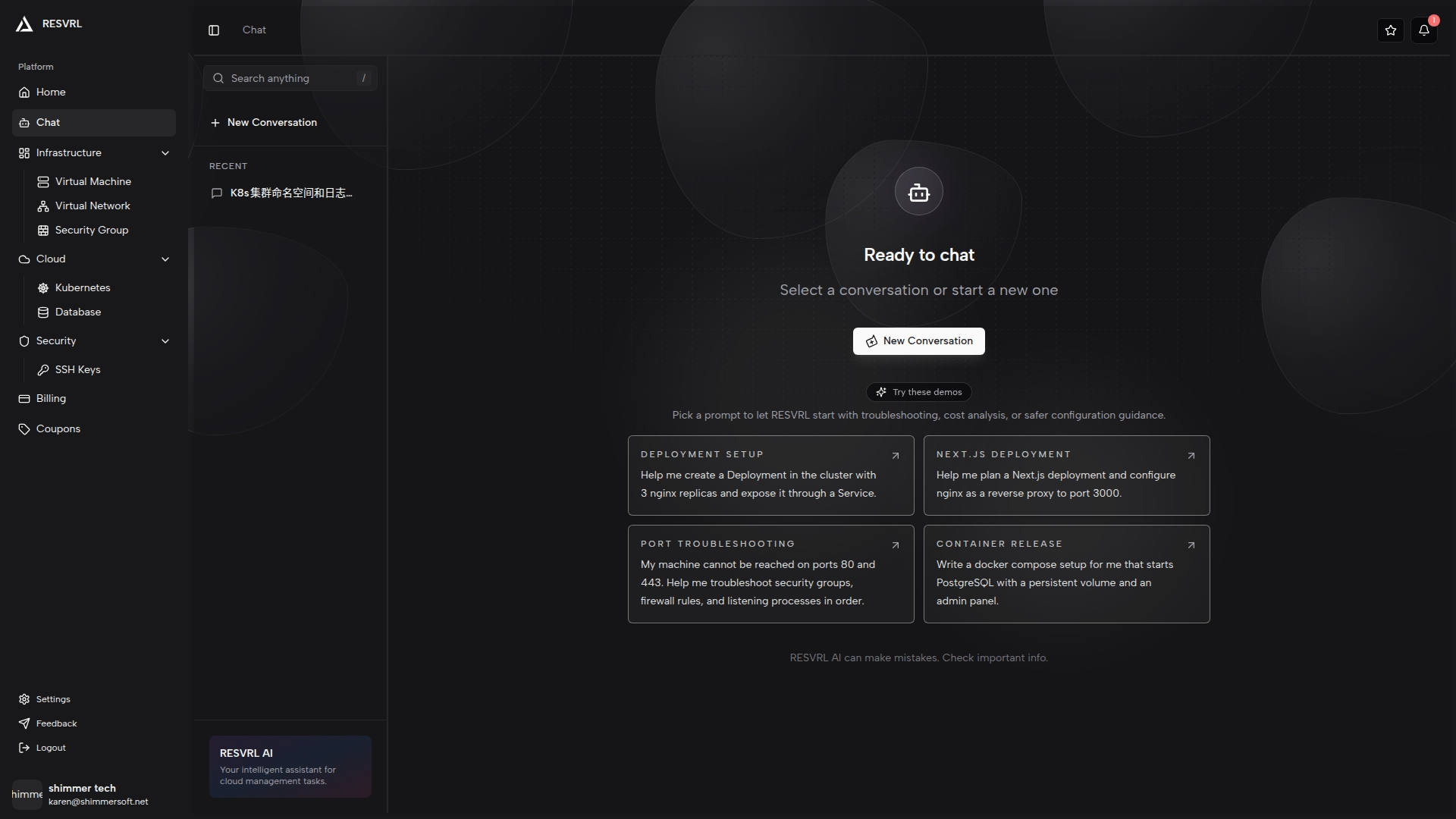
- The page is split into two areas: the conversation list on the left and the welcome screen or active conversation on the right.
What appears on the first screen
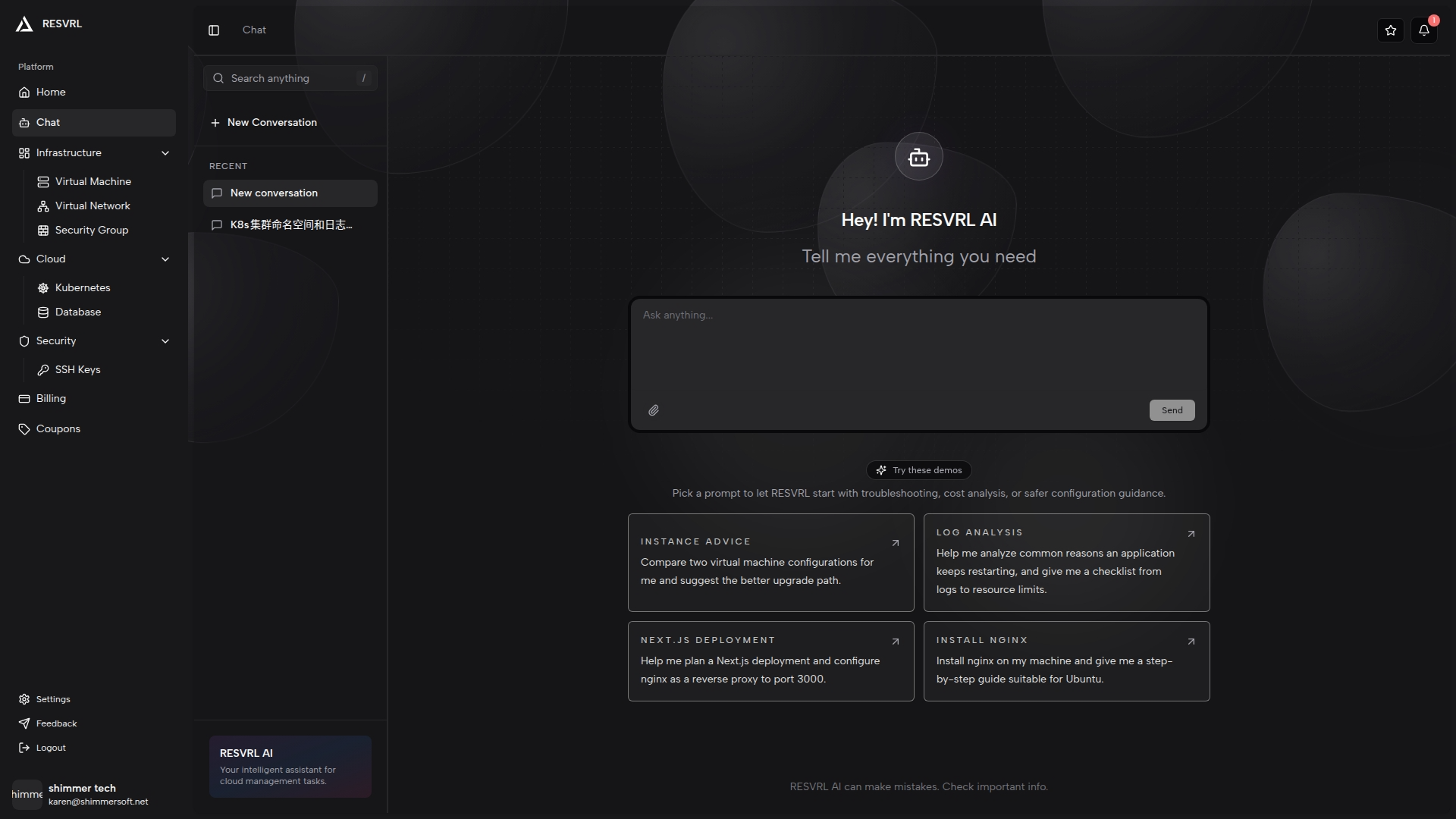
When no specific chat is open, the main area usually shows:
- A welcome headline.
- A large input box for your first message.
- Several prompt cards that can be clicked to start quickly.
The left conversation panel typically includes:
- A search box, which can be focused with
/. - A New Conversation button.
- A list of recent chats.
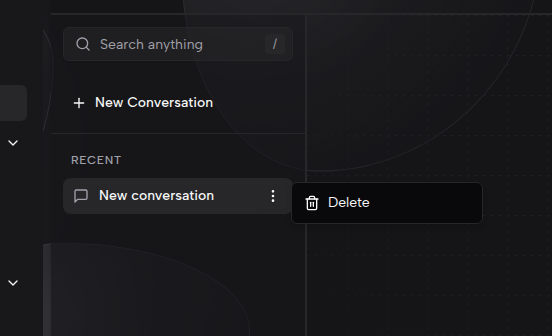
- A More menu on each chat row for deleting that conversation.
Start a new conversation
- Click New Conversation in the sidebar, or type directly into the welcome-screen input box.
- Enter your request.
- Press Enter to send. Use Shift + Enter for a new line.
- The system creates or reuses a conversation and opens its dedicated chat page.
If you want a quick start, click one of the prompt cards on the welcome screen.
What the example cards can do
The welcome-page cards cover workflows ranging from advice and analysis to controlled operations. Typical examples include:
Troubleshooting and recovery
- Kubernetes troubleshooting: build a layered checklist from Service and Ingress through gateway routing when a service is unreachable.
- Port troubleshooting: inspect security groups, firewall rules, and listening processes in order when ports 80 or 443 cannot be reached.
- Cross-service troubleshooting: trace an external-access failure across security groups, virtual networks, VM state, and the application.
- VM rescue mode: handle an inaccessible VM from remote diagnostics and network checks through credential recovery and, only as a last resort, OS reinstall; request confirmation at each step and preserve data.
- Log analysis: use logs and resource limits to investigate why an application keeps restarting.
Deployment and architecture decisions
- Container release: start a container application such as PostgreSQL with persistent storage.
- GitHub deploy: analyze a repository’s stack and recommend runtime, port-mapping, and network-access configuration.
- Container template recommendation: compare templates for use cases such as blogs, corporate sites, APIs, databases, and admin panels.
- VM-to-container migration: compare VM and container cost, complexity, elasticity, and stability, then outline a migration path.
Resources, security, and cost
- Resource optimization: identify underutilized VMs, unattached disks, and idle public IPs, then recommend downsizing or release.
- Kubernetes cost breakdown: analyze CPU and memory share by namespace and workload and suggest scaling changes based on actual load.
- Security exposure audit: inspect security-group attachment, unrestricted or public-source rules, password login, and recent attacks, then rank risks.
- Monthly spend comparison: compare VM, disk, network, and container costs between this month and last month and explain the increase.
- Multi-path upgrade comparison: compare a plan upgrade, additional CPU or memory, an extra disk, or another machine by cost, difficulty, and business impact.
These cards are reusable prompt templates. Results depend on the resources, data, permissions, and tools available to the account. For actions such as deletion, reinstalling an OS, opening ports, changing security groups, or placing an order, ask AI to explain the impact and execution plan before giving human approval.
What you can do during a conversation
- Continue asking follow-up questions in the same thread.
- Read streaming responses as they appear.
- Click Stop while the model is generating.
- Continue in the same conversation after the response completes.
The input area also contains an attachment-style button. If the product exposes more context-upload features later, that is the place to check first.
Search and manage chat history
Search history
- Enter a keyword in the search box at the top of the sidebar.
- The list filters immediately by conversation title.
- Click a result to reopen that conversation.
Delete a conversation
- Hover over a chat row in the sidebar.
- Open the More menu on the right side.
- Click Delete.
- If the deleted chat is currently open, the page returns to the Chat home view.
Best practices
- Start with a clear goal, such as asking for step-by-step cluster preparation or a troubleshooting checklist.
- Include relevant context like region, network type, or product area when your question depends on the current environment.
- Ask the assistant to rewrite long answers as steps, checklists, or concise summaries when needed.
- Verify important answers before changing live resources, especially for deletion, network exposure, or system reinstall workflows.
Common questions
Why does clicking New Conversation sometimes reopen an existing chat?
If the latest conversation exists but still has no messages, the UI may reuse that empty chat instead of creating another blank one.
Why does the Send button change to Stop?
That means the assistant is currently streaming a response. Click Stop to interrupt the output.
Can I trust every answer from AI Chat?
No. The product warns that AI can make mistakes, so verify important operational guidance before applying it.
Related guide
This document was updated on 2026-04-25 09:00