Conversations and History
This page focuses on the day-to-day AI Chat workflow, including how to start a conversation, use prompt cards, search chat history, delete a conversation, and stop a response while it is streaming.
Conversations and History
This page focuses on the day-to-day AI Chat workflow, including how to start a conversation, use prompt cards, search chat history, delete a conversation, and stop a response while it is streaming.
Page layout
When you open Chat, the UI usually has two main areas.
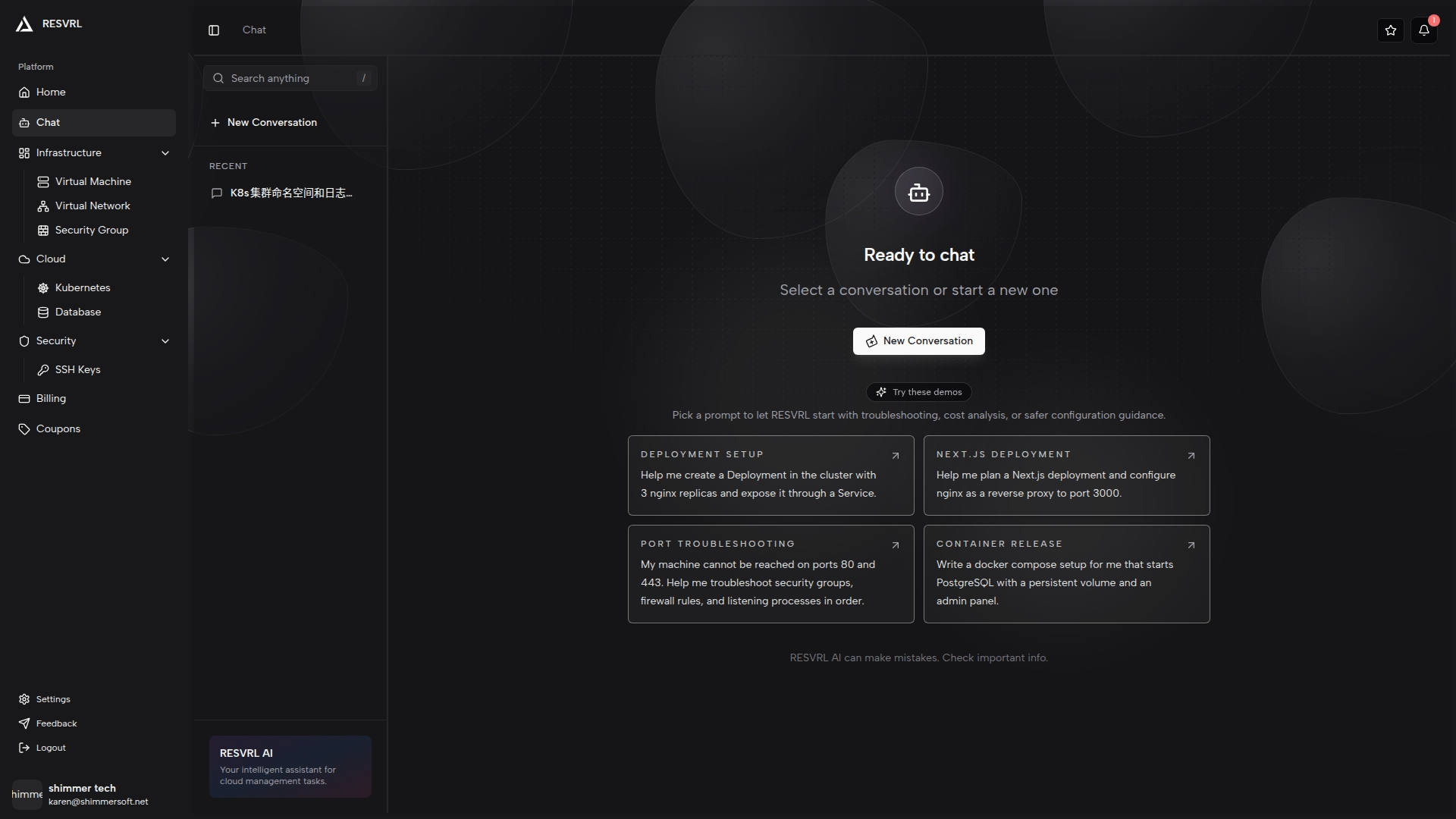
Left conversation panel
- A search box at the top.
- A New Conversation button.
- A list of recent chats.
- A More menu on each chat row.
Right main panel
- A welcome screen when no specific chat is open.
- The active conversation and input area when a chat is selected.
Two ways to start a conversation
Method 1: Click New Conversation
- Click New Conversation in the sidebar.
- The page opens a new empty conversation.
- Type your request and send it.
Method 2: Start from the welcome screen
- Type directly into the welcome-screen input box.
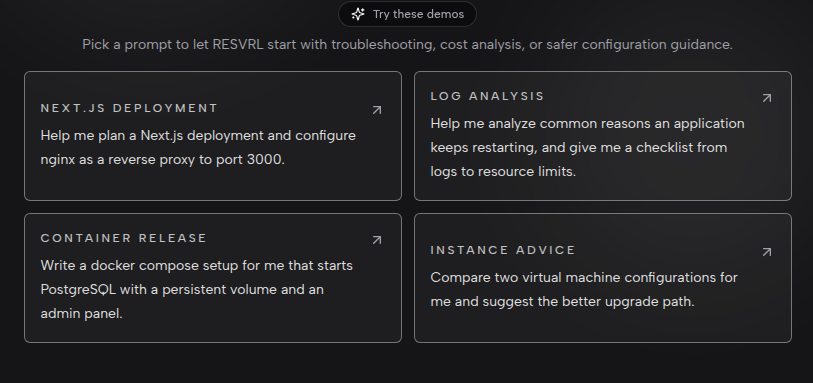
- Or click one of the prompt cards.
- The system creates a conversation and starts the response.
How to write the first message
To get a useful answer faster, include at least two or three of the following:
- What you want to achieve.
- Which resource area you are working in, such as VM, Kubernetes, networking, or security group.
- What symptom or current issue you see.
- What output you want, such as a checklist, steps, or a concise summary.
Examples
- Help me list the network prerequisites before creating a Kubernetes cluster.
- A VM is not reachable from the internet. Give me a troubleshooting order.
- Rewrite this security-group procedure into a short operator checklist.
Input and send behavior
- Press Enter to send.
- Press Shift + Enter for a new line.
- While the assistant is responding, the Send button changes to Stop.
- Click Stop to interrupt the current output.
Using the prompt cards
The welcome screen usually shows a rotating set of prompt cards to help users start quickly.
- Review the available prompt cards.
- Click one that matches your goal.
- The system sends that prompt as the first message.
If a prompt is close but not exact, use it as a starting point and then add your own context in the next message.
Search chat history
- Enter a keyword in the search box at the top-left.
- The conversation list filters immediately.
- Click the result you want to reopen.
This is useful when you want to revisit an earlier discussion about networking, image selection, or cluster operations.
Delete chats you no longer need
- Hover over a chat row.
- Open the More menu on the right.
- Click Delete.
- If that chat is currently open, the page returns to the Chat home view.
Recommended daily usage patterns
Ask for step-by-step operations
Use Chat before making changes when you want a checklist or a structured operating sequence.
Ask for troubleshooting structure
When the issue is complex, ask Chat to organize the investigation by area such as network, permission, resource pressure, and configuration.
Rewrite existing notes
If you already have internal notes, paste them into Chat and ask for a cleaner, easier-to-follow procedure.
Important cautions
- Chat is useful for guidance and summarization, but it should not replace final configuration review.
- For high-risk actions such as deletion, opening ports, or reinstalling systems, verify the actual console state before applying the advice.
- If a response does not match the current UI or resource state, trust the real console data first.
This document was updated on 2026-04-25 09:00