VM Monitor and Operations
RESVRL provides VM monitoring and operations on the VM detail page to help you manage dashboards and maintenance tasks.
VM Monitor and Operations
RESVRL provides VM monitoring and operations on the VM detail page to help you manage dashboards and maintenance tasks.
From where to enter
- From the VM list, click a VM name to open its detail page.
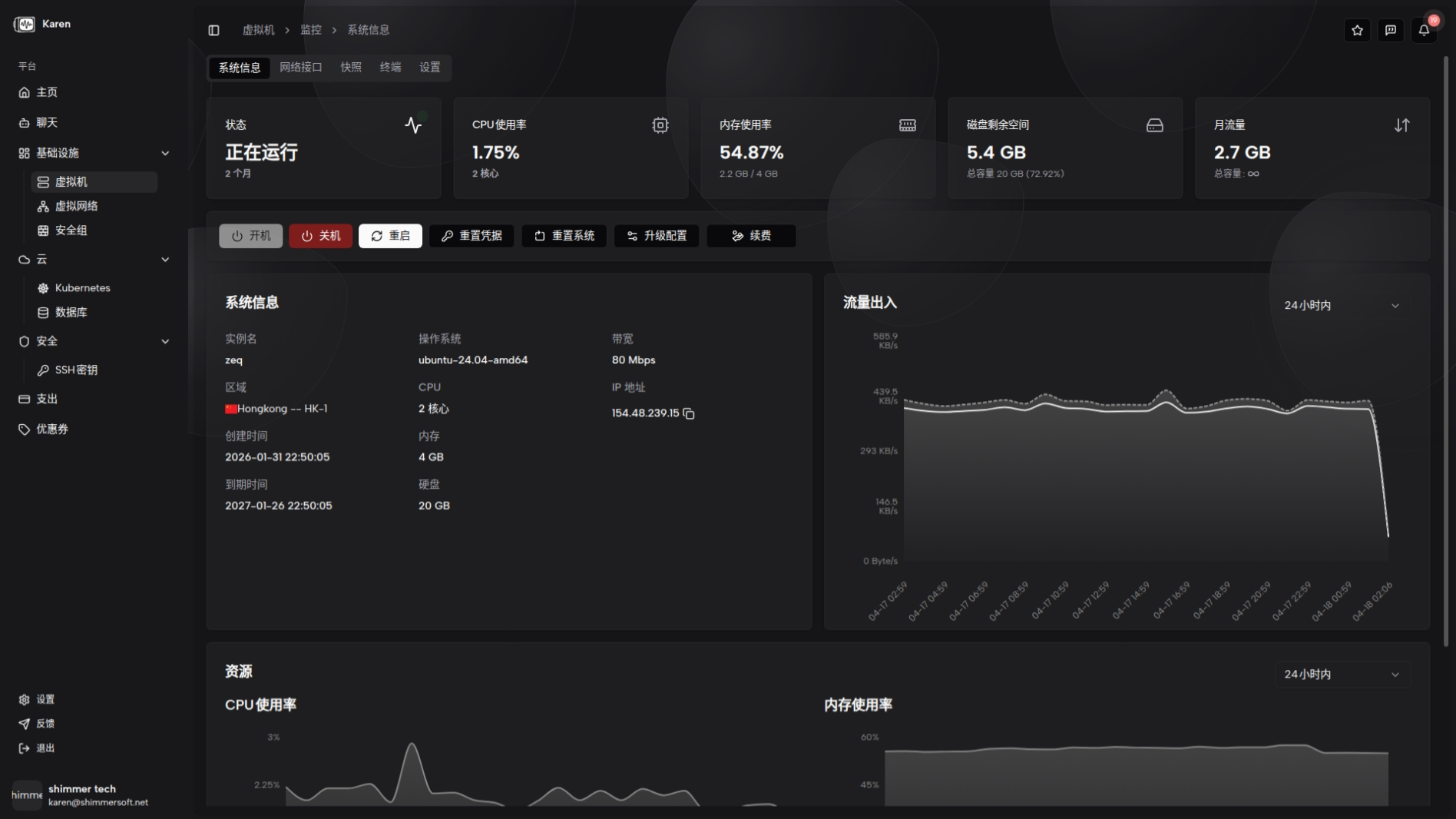
System Information
In the system information area you can review key attributes and the VM state:
- Instance name and current running state
- Public IP and region
- Operating system image
- CPU cores, memory, storage, and bandwidth details
- Creation time and expiry/renewal information
- Summary of NICs and related network configuration
System information also feeds the real-time and historical metrics panels for quick assessment.
Metrics and Charts
- Real-time indicators show current state, CPU usage, memory usage, and disk capacity utilization.
- Historical charts display CPU, memory, disk usage over time, and inbound/outbound network traffic
- Charts support time ranges of 24 hours, 3 days, and 15 days to help distinguish bursts from long-term trends.
Actions available from this page
Power actions
Power actions include Start, Stop, and Reboot. Reboot supports an optional force mode. Force reboot immediately terminates running processes and may cause data loss — use with caution.
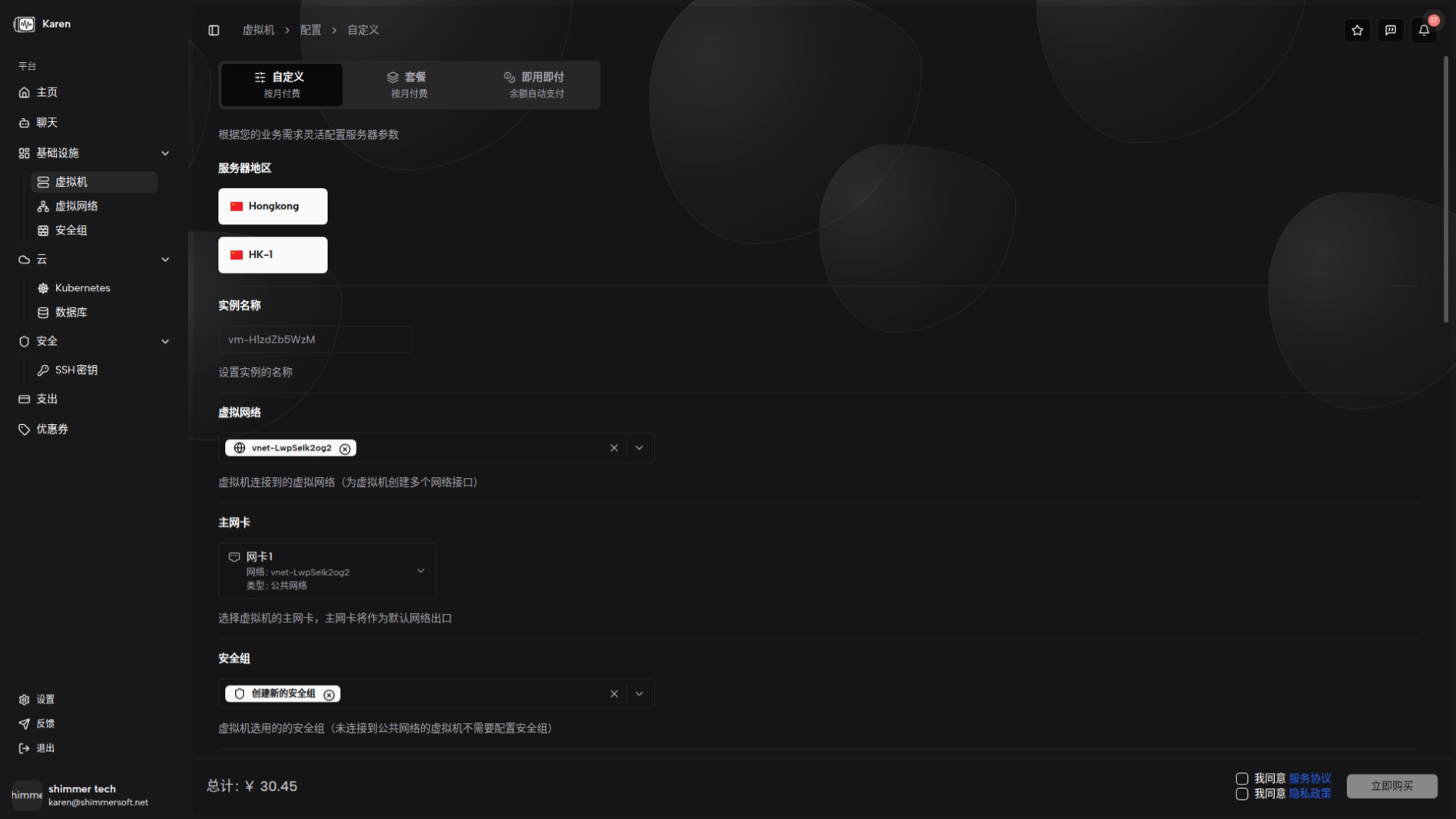
Reset credentials
Reset credentials lets you modify the VM login credentials, including username, SSH public keys, and password. A reboot may be required for changes to take effect.
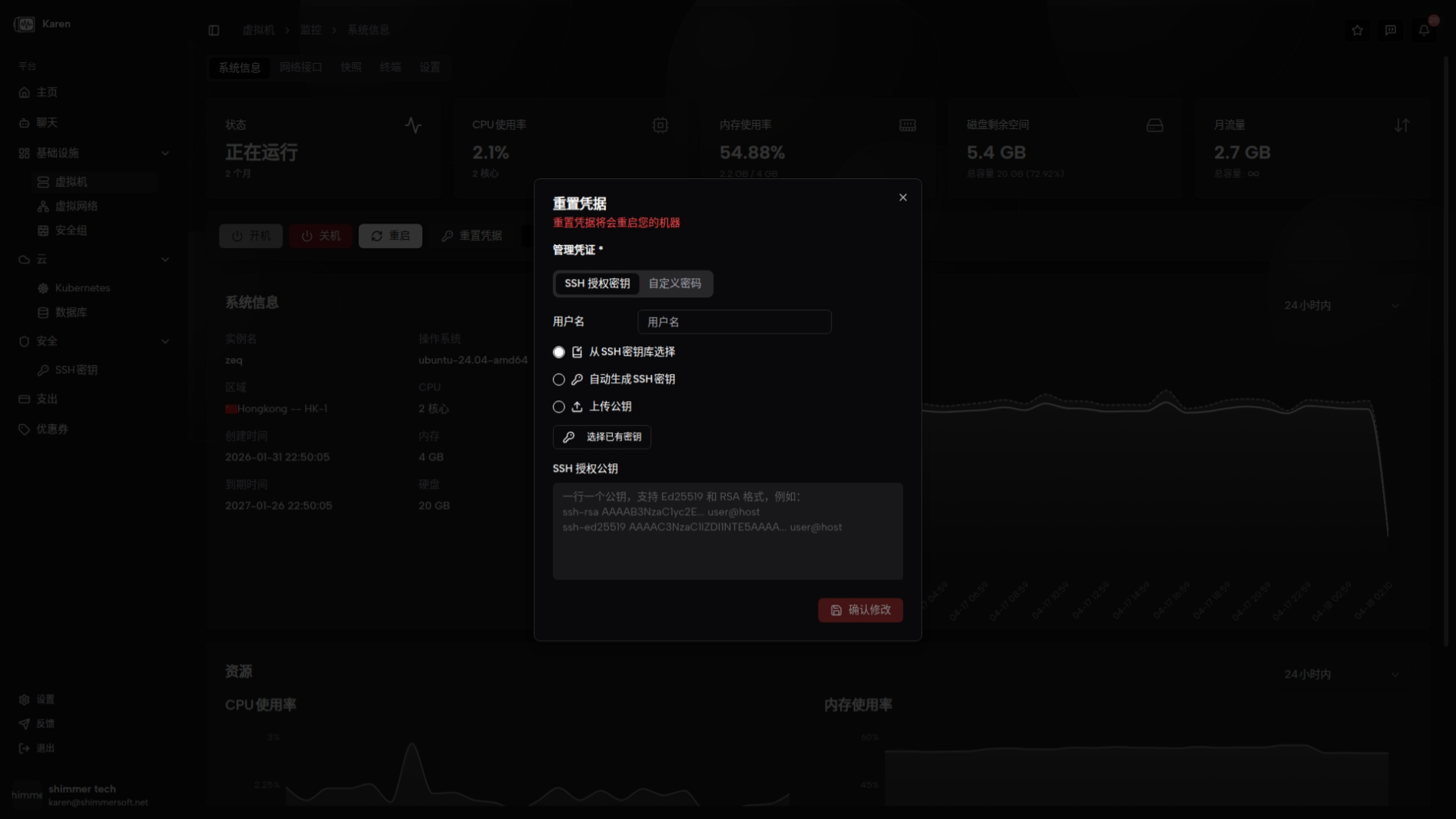
Reinstall OS
From the OS reinstall section, choose a new image to reinstall the operating system. This is a destructive operation that wipes the system disk — back up important data first. Available images depend on the host machine.
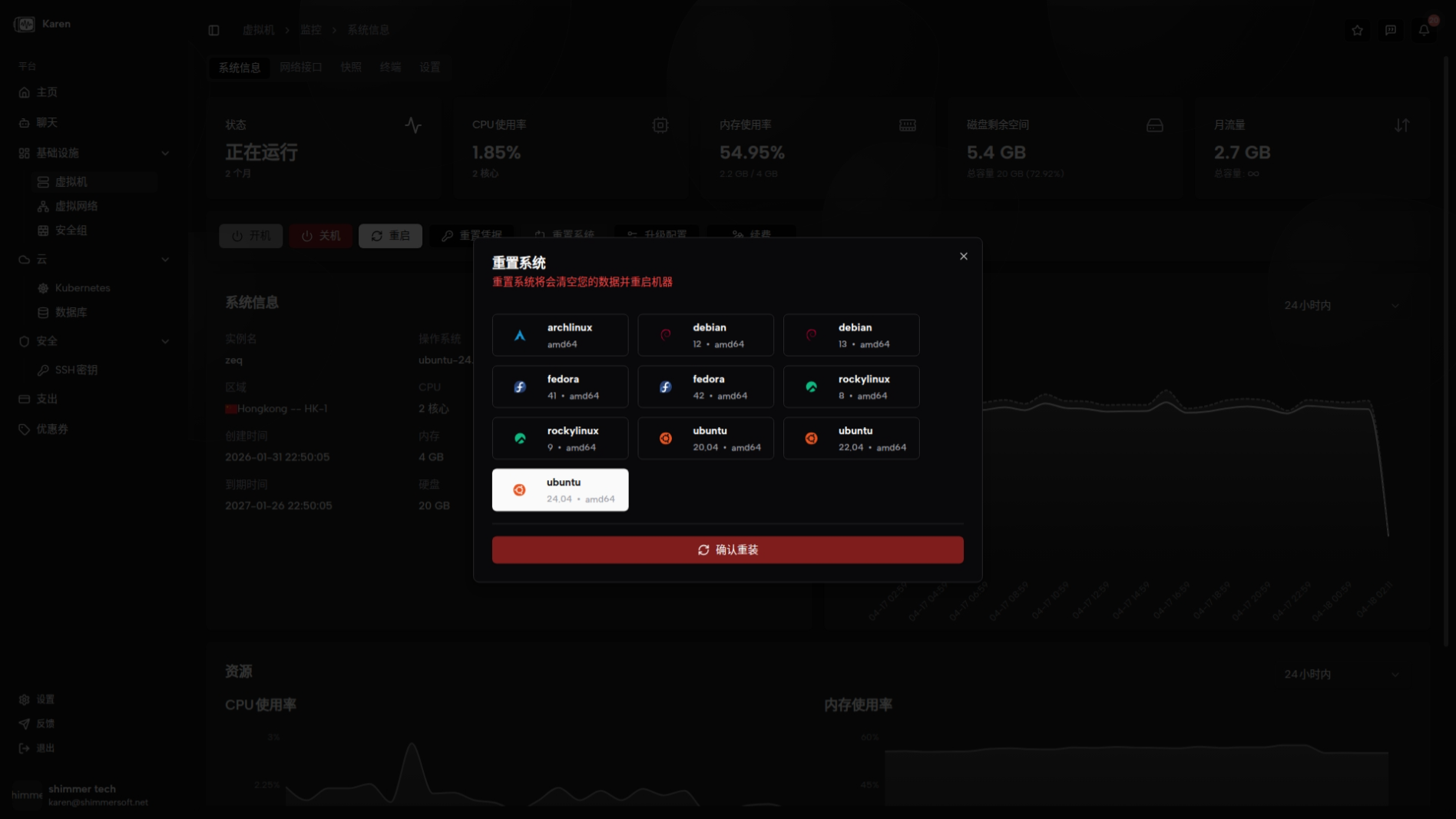
Upgrade VM
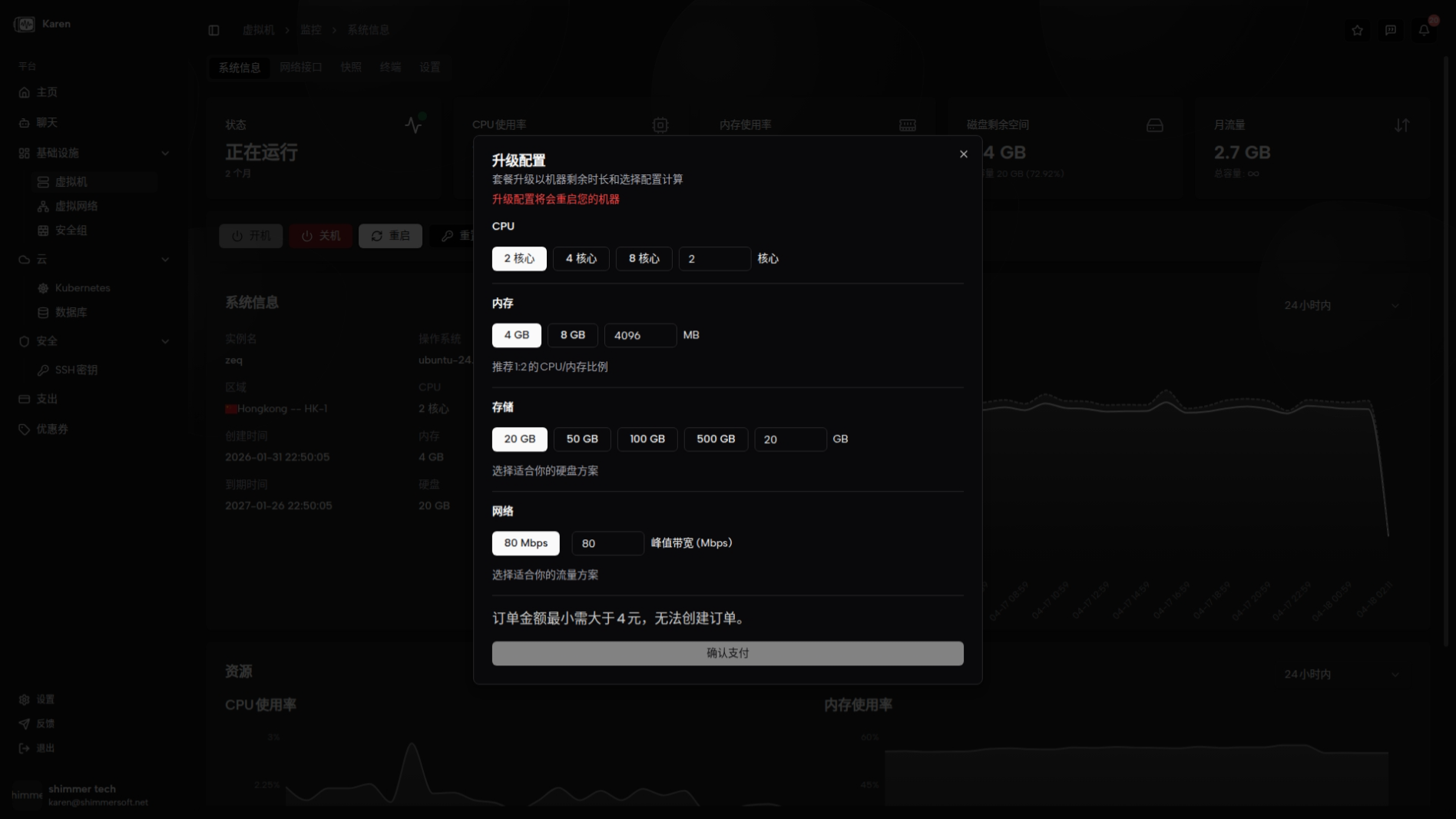
Two upgrade paths exist: Plan upgrade and Custom upgrade. Plan upgrade lets you pick a predefined plan and the system calculates price and discounts. Custom upgrade lets you tailor CPU, memory, storage, and network with live price estimates; upgrading may require a reboot.
Renew service
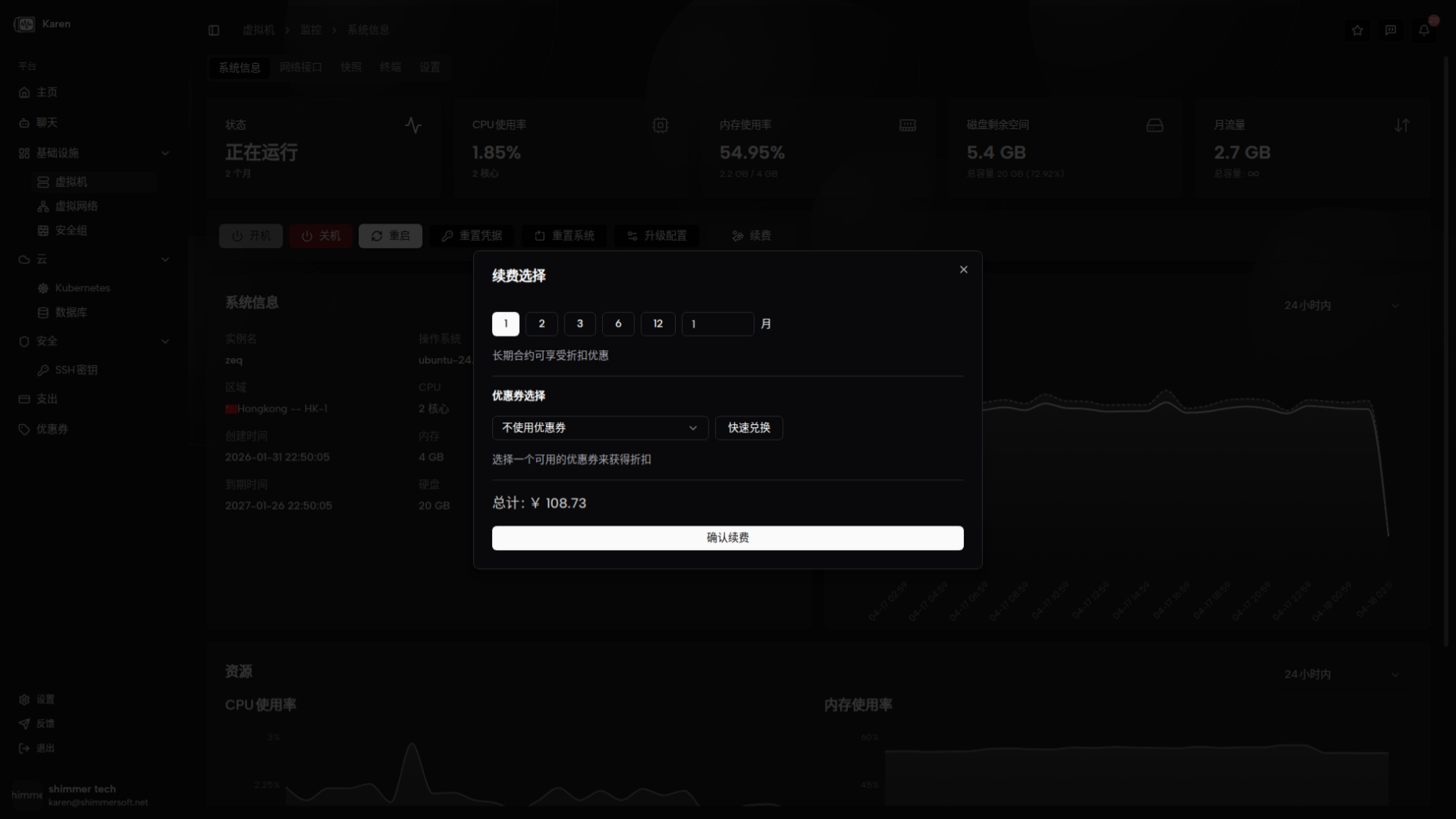
Extend the VM's service duration from the details page. The system creates an order for the chosen duration and processes payment.
Note: Some actions may require VM reboot for changes to take effect. Plan accordingly for maintenance windows.
Expiration and Resource Release Policy
Resvrl implements automated expiration management to ensure fair resource allocation:
Expiration Timeline
| Stage | Timing | System Action |
|---|---|---|
| Expiration Reminder | N days before expiry | System sends reminder notifications; renew soon |
| Overdue Shutdown | 1 day after expiry | VM is forcefully shut down; data retained |
| Resource Release | 30 days after expiry | VM resources are fully released; data cannot be recovered |
| Pay-as-you-go Release | 3 hours after balance depletion | Pay-as-you-go instances are automatically released when balance is insufficient |
Important Notes
- Renew on time: Renew promptly upon receiving expiration reminders to avoid service interruption
- Data backup: Data is retained after overdue shutdown, but resources are released after 30 days — back up data in advance
- Pay-as-you-go users: Maintain sufficient account balance; resources are released when balance is insufficient
Upgrade Rules
VM configuration upgrades follow these rules:
- Upgrade only: You can upgrade CPU, memory, storage, bandwidth, and other configurations at any time
- No downgrade: Once upgraded, configurations cannot be downgraded to lower specifications
- Pricing: Upgrade price = New configuration price - Remaining value of current configuration
- Effect: Some configuration changes require a VM reboot to take effect
Recommendation: Choose appropriate specifications based on your business needs before upgrading — downgrades are not possible.
Recommended operating routine
- Check traffic and resource charts first to determine whether the issue is CPU, memory, disk, or network related.
- Only reboot when workload can tolerate interruption.
- Use credential reset when access is lost — not as everyday management.
- Reinstall OS only if you accept data replacement or backups exist elsewhere.
Related guides
This document was updated on 2026-04-25 09:00